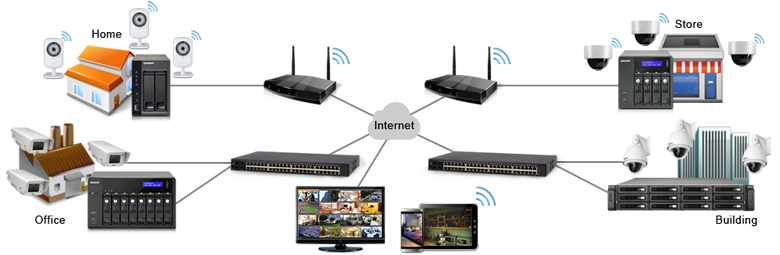
The Surveillance Station is professional network surveillance Video Management System (VMS). Being one of the Turbo NAS standard applications, the Surveillance Station can be activated on the QTS App Center to turn the Turbo NAS into a professional Network Video Recorder (NVR) system for real-time monitoring, recording, playback, alarm notifications, Intelligent Video Analytics (IVA), and management to safeguard your assets and property when used with supported IP cameras.
Live-view:
Maintaining accessible and reliable live surveillance feeds is essential for properties such as retail stores, hotels, construction sites, offices, and at home. With the Surveillance Station, you can easily manage & monitor multiple IP cameras on a real-time basis through web browsers, and attain the first-hand status of monitored corners, such as building gates, office entrances, or emergency exits, safeguarding your staff and property.
Various remote monitoring modes
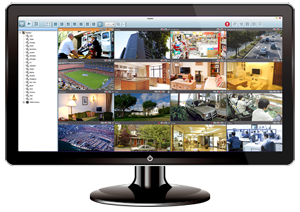
The Surveillance Station supports various monitoring modes to display 1, 4, 6, 8, 9, 10, 12, 16, 20, 25, 36, 42, and 64 channels on a single screen. Users can also choose to sequentially display each channel or use dual displays to have a wider view.

PTZ (Pan/Tilt/Zoom) control
On the Surveillance Station web interface, you can directly adjust the PTZ (Pan/Tilt/Zoom) functions of supported cameras, greatly enhancing the convenience in remote monitoring of desired corners.
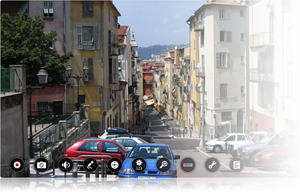
Interactive control buttons
Whenever you move the mouse cursor over a camera channel, the supported function buttons of the camera will show up for quick access. The interactive control buttons will disappear when not in use, helping you watch the IP camera feeds without any distractions.
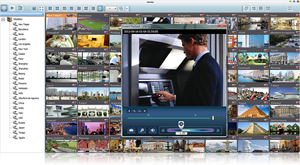 Instant Playback
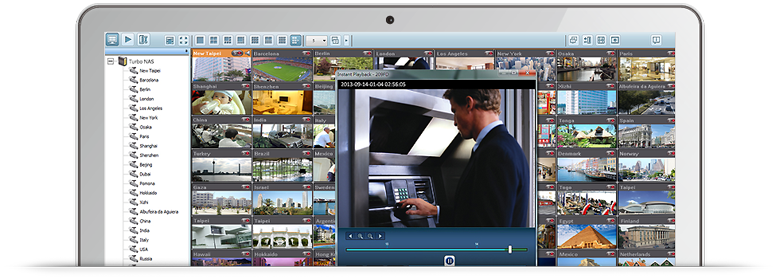
On the Live-view page, whenever you want to look back to check suspicious events of a camera channel you just missed, just hit ‘Instant Playback’ button to bring up the window to review recent feeds. While you don’t have to switch to the playback page to do so, you can still have full live views of other channels simultaneously.
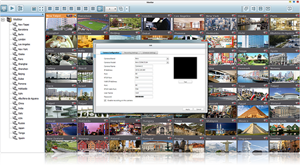
Preset positions and auto-cruising
You can set up preset positions and auto-cruising for PTZ cameras to automatically adjust the camera angle to preset positions by the time interval you define. To gain more flexibility, you can click the corresponding number buttons of an IP camera’s preset positions to have an instant view at that position.
Same-screen IP camera configurations
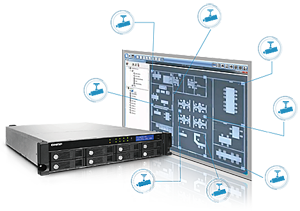 On the Live-view page, you can directly configure IP camera recording schedules when needed without leaving the Live-view page, maintaining a seamless monitoring so you won’t miss any suspicious event.
Visual aid by E-map
The E-map function helps visualize the layout of the deployment of IP cameras enabling you to quickly identify the location of each IP camera, especially when an alarm occurs. Just upload the pictures of the monitoring locations and drag and drop the IP camera icons to the right place on the E-map. Once an alarm event happens, the camera icons will flash to indicate the event type for you to be alerted immediately and take necessary actions.
 Cross-platform support
The Surveillance Station works with all major web browsers such as Google Chrome, Mozilla Firefox and Internet Explorer. With QNAP Surveillance Client for Mac, users can also enjoy a similar experience on their Macs.
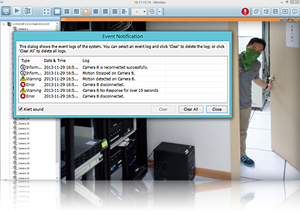
Instant notifications
When the alarm recording is enabled and an event occurs, an alarm icon will be shown instantly on the monitoring page. The alert details can be viewed by clicking the icon.
Recording:
The Surveillance Station provides flexible options to set up IP camera recording, including video format, frame rates, schedules, smart recording, and more.
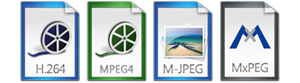 High quality codec recording
The Surveillance Station supports H.264, MPEG-4, M-JPEG, and MxPEG recording, ensuring high-quality recording videos for future playback and reference.
Manual recording
On the Live-view panel, you can click the record button to start recording the live camera feeds and click the stop button whenever you want to finish recording. Manual recording helps you to capture critical moments on a real-time basis.
Smart recording
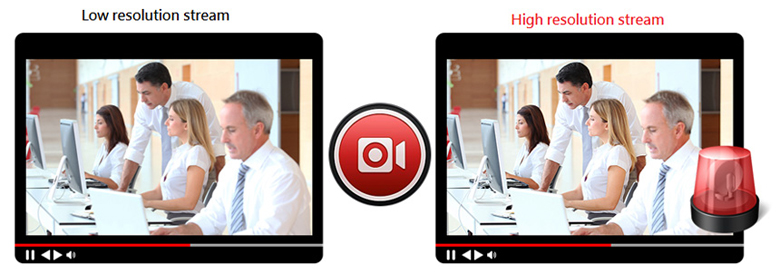
Smart recording intelligently records standard resolution videos in regular recording, and switches to high resolution automatically when alarms are triggered. This greatly saves your cost spent on hard drives and provides you with high resolution video evidence when needed.
Scheduled recording
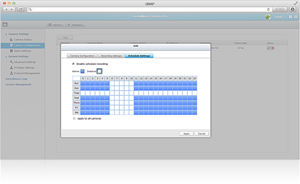
With the intuitive drag-n-drop scheduled recording panel, you are able to define the time to record feeds for each IP camera, allowing you to flexibility set up a suitable recording plan with your existing Turbo NAS storage capacity.
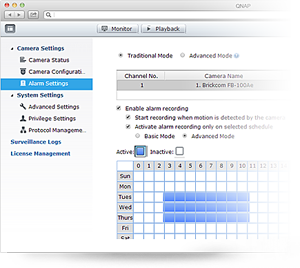
Alarm recording
With alarm recording, the recording will only be triggered when motion detections and camera input events occur. Alarm recording ensures the critical events are properly saved for future use and saves storage capacity usage.
Playback:
The Surveillance Station provides various ways for you to search and analyze recordings so you can efficiently look up the desired events.
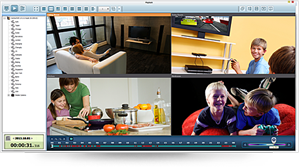
Identify events easily
On the intuitive playback interface, you can easily distinguish regular recording and alarm recording in the timeline bar.
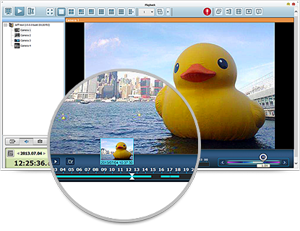 Preview recordings by thumbnails
You can move the mouse cursor over the timeline to preview the video thumbnails to quickly identify and search the event. No need to play the video from the start and wait long just to find a short video clip.
Playback and speed control by shuttle bar
With the speed control shuttle bar, you are able to fast-forward the video playback by dragging the button to the right and rewind to the left at the speed you like, helping you quickly find the desired screenshots.
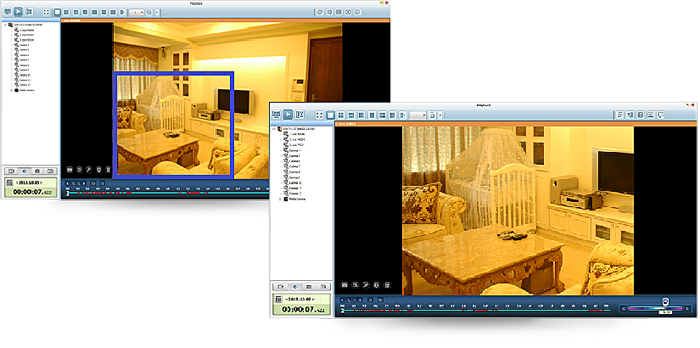
Zoom in to see details
Mega pixels camera had become mainstream with larger recording zone and higher resolution. By right-clicking the mouse and dragging an area on the screen, that area will be enlarged with a more clear view.
Intelligent Video Analytics (IVA)
IVA is an advanced way to quickly search videos corresponding to particular modes, greatly saving the time & effort of manually screening out matching videos. For example, in search of a missing car in a parking lot, the “missing object” mode can help quickly locate the section in which the car disappears in the video.
Real-time watermarking
In need of exporting videos or snapshots, the concern of authenticity might occur. The support of digital watermarking helps prove that the exported videos and snapshots are genuine without any falsification. The Watermark Proof utility developed by QNAP can verify the credibility of the exported videos and snapshots by showing the exact recording date and time, camera name and the Turbo NAS model name. This is rather useful when the videos could be raised as evidence in a relative investigation or in court.
Management:
The Surveillance Station provides flexible options for you to set up a surveillance system that is fully customized for you.
Web-based user interface
The management of IP cameras is all done on the browser. With no additional software required, you save more time for other more important tasks.
Choose from over 2,600 IP cameras
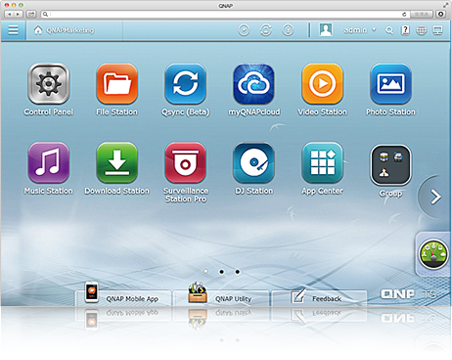
The Surveillance Station is compatible with over 2,600 IP camera models of over 90 brands and ONVIF specifications, including those support advanced features such as multi-streaming and fisheye-dewarping. The wide range of supported IP cameras provides great flexibility in IP camera selection.
Expandable license management
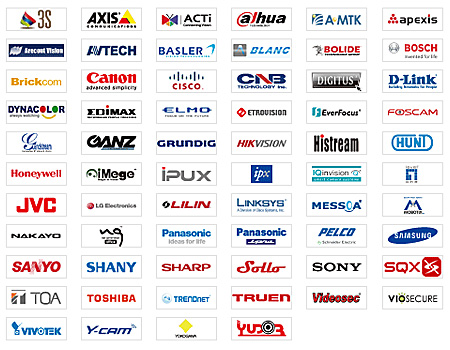
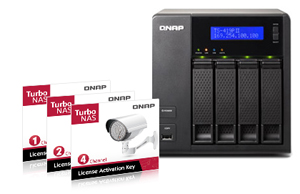
The Surveillance Station comes with at least one free IP camera license for each Turbo NAS by default and you can expand the channel number based on your demands by purchasing additional licenses. This provides a flexible and cost-effective way of scaling your surveillance needs.
Flexible camera access control
 You can create up to 32 user accounts on the Surveillance Station and flexibly assign them to different user groups with different rights for monitoring, playback, PTZ control, and audio monitoring.
Advanced Event Management
The Surveillance Station allows you to configure 5 types of events, including motion detection, alarm input, connection failure, recording failure and user-defined events. Every event can be assigned to 7 types of event actions, including recording, PTZ Control, alarm output, email notification, SMS notification, buzzer notification, and user-defined actions, helping you to be alerted immediately.
Surveillance Station Pro:
Surveillance Station Pro is an upgraded version of Turbo NAS surveillance solution It provides enhanced and additional features than Surveillance Station as listed below.
- Supports over 1,400 IP camera models
- Expandable license management
- Flexible camera access control
- Monitors up to 42 camera channels on single screen and up to 128 camera channels by sequence
- 15 schedule lists for schedule recording
- Alarm recording for 5 alarm events and 7 event actions
- 16 multi-view playback
- Intelligent video analytics (IVA)
- E-map
- VMobile app
Supports over 2,600 IP camera models
The Surveillance Station Pro, compatible with ONVIF specifications, extends its number of supportive IP cameras to over 2,600. The wide scale of supported IP cameras presents the Surveillance Station Pro as a well-rounded surveillance solution for professional businesses environments.
Expandable license management
The Surveillance Station Pro has one free IP camera license installed by default. Administrators can purchase additional licenses to expand channels for IP cameras based on demand. The flexible and convenient process for license purchasing and installation fulfills different surveillance needs of scalability in a cost-efficient way.
Flexible camera access control
Administrators can create 32 user accounts on the Surveillance Station Pro and flexibly assign them to different user groupswith different rights of monitoring, playback, PTZ control, and audio monitoring. For instance, the user account for the security guards of office building can be granted with the rights of monitoring, and the user account for the monitoring center can be added to administrator group with the complete rights of monitoring, playback, PTZ control, and audio monitoring.
42 channels live-view on single display
The Surveillance Station Pro allows up to 42 camera channels to be monitored simultaneously on a single display, enhancing multiple live-view for administrators to monitor multiple critical areas simultaneously and minimize the times of switching the screen.
128 channels with multi-server monitoring
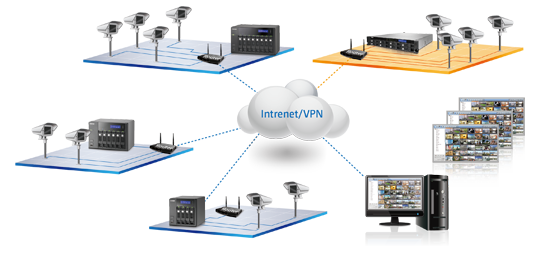
The scope of the surveillance system can be expanded easily for the needs of wider arrangement. By connecting multiple Turbo NAS units, administrators can monitor all the IP cameras managed by the Turbo NAS at the same time from a single unit utilizing multi-server hosting, up to 128 channels on a PC over LAN or WAN. The scalability provides greater flexibility for companies that may deploy a smaller surveillance system in the beginning due to the budget allowance but still have an inexpensive expansion solution in the long-term when wider deployment is needed.
15 schedule lists for schedule recording
Administrators can create up to 15 recording schedules for each IP camera to comprehensively safeguard the monitored areas.
5 alarm events and 7 event actions
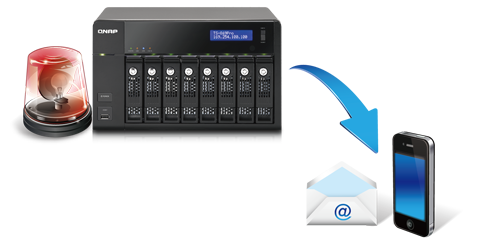
The Surveillance Station Pro offers richer functions for alarm recording. The system starts alarm recording when any of the events happens. Administrators can configure 5 types of events, including motion detection, alarm input, connection failure, recording failure and user defined event. Every event could be assigned with 7 types of event action, including recording, PTZ Control, alarm output, email notification, SMS notification, buzzer notification, and user-defined action, helping administrators stay alerted immediately.
16 multi-view playback
The Surveillance Station Pro enables administrators to divide a video equally into 16 time-frame sessions for playback in a multi-view window, or play the videos of 16 IP cameras in the multi-view window simultaneously. It improves the efficiency of video search, and reduces the time of video playback at the same time.
Intelligent video analytics (IVA)
IVA is an advanced way to help quickly search videos corresponding to the particular modes, greatly saving the time and effort of manually screening out matching videos. The analyzed modes include motion detection, foreign object, missing object, out of focus, camera occlusion, and object size. For example, in search of the missing car in the parking lot, analyzed mode “missing object”can be used to quickly locate the section in which the car disappears in the video. Or, analyzed mode “motion detection” can be used to quickly lead to the sections in which people in and out the important warehouse or data center.
Visual aid by E-map
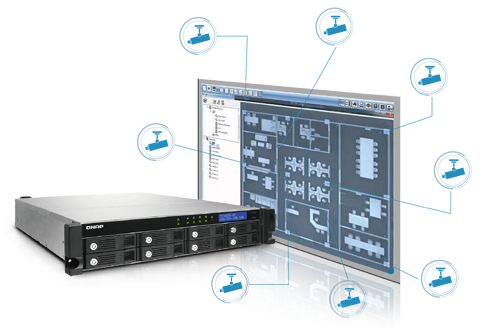
The E-map function helps visualize the layout of the deployment of IP cameras, and enables administrators to quickly identify the location of each IP camera, especially when the alarm occurs. Just upload the pictures of the monitoring locations, and drag and drop the IP camera icons to the right place on the E-map. Once the alarm events happen, the camera iconswill flash to indicate the event type, and thus administrators can be alerted immediately and take necessary actions. They can double click on the alert icon to display the camera live view.
VMobile for monitoring on the go
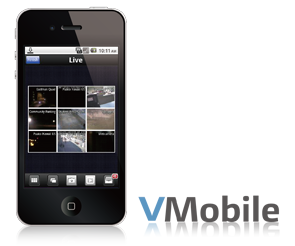
VMobile app supports iOS® and Android™ systems and enables users to monitor the surveillance channels anytime and anywhere with mobile devices. It allows camera live-view, PTZ control, instant event notifications, video snapshot, video playback, and video search by date and time, bringing forth comprehensive mobile surveillance solutions to satisfy the keen needs for security.